User Guides › ScoutTract Hunting - Quick Start
ScoutTract Hunting - Quick Start
Phone screenshots and steps. Letter-size PDF that also reads well on a phone.
Contents
Screens are from the live app, using a test account and sample points.
1 · Sign in from your invite
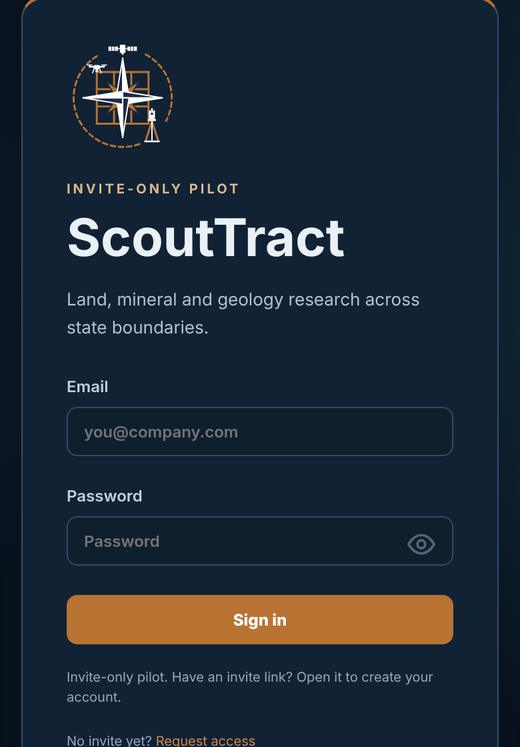
- Open the invite email on your phone and tap Accept your invite. The link is private and works once.
- Set your password, then read and accept the terms.
- Pick your state. Your account opens in Hunting mode (switch any time from the mode button at the top).
- Next time, sign in at scouttract.com with your email and password. Forgot it? Tap Forgot password? for a code by email.
2 · Put it on your phone
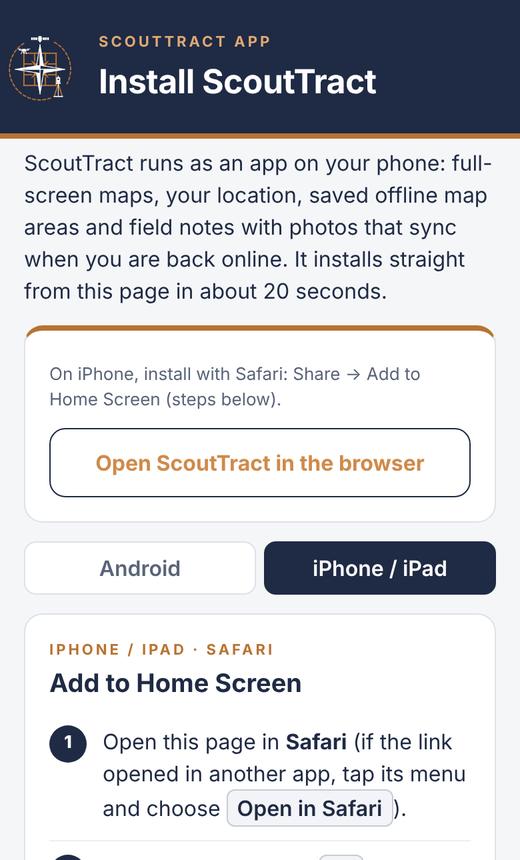
- iPhone (Safari): tap Share ⬆︎, then Add to Home Screen › Add.
- Android (Chrome): tap the ⋮ menu, then Install app or Add to Home screen.
- Android app: on your phone open scouttract.com/install, tap Download the Android app (APK), open the file and tap Install (allow this source if asked). Not on Google Play yet.
- Open ScoutTract from the new icon and tap Allow for location. No iPhone app yet: on iPhone use the web app.
Same account on your phone, the Android app and your computer.
3 · Map basics
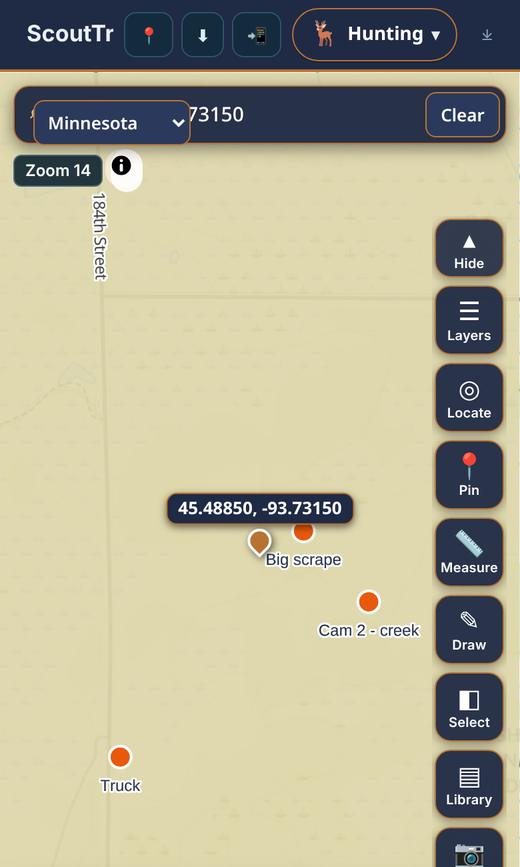
- Search (top bar): an address, a place or lat/long such as
45.4885,-93.7315. - State drop-down (left of the search bar): jump to another state on your account.
- Layers: tick what you want to see (public land, walk-in areas, hunting units, CWD and more), untick to hide. Keep on only what you need.
- Locate centres the map on you; tap again to follow as you walk.
- Swipe the bottom sheet up for more layers and tools.
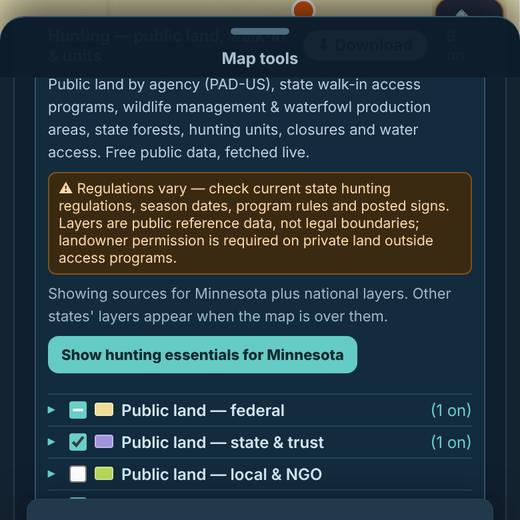
4 · Tap a parcel or public land
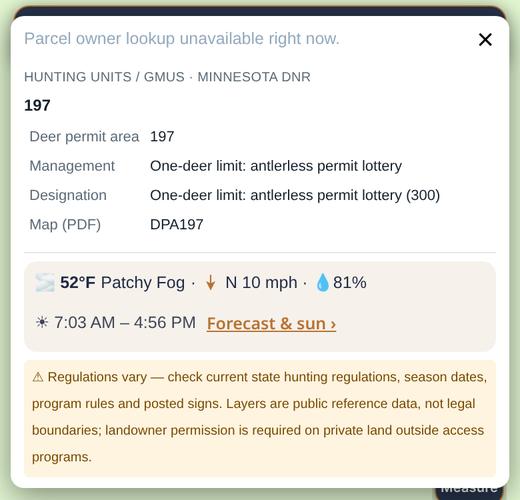
- Tap the map to see what is there: public land (agency and unit), hunting units with links to the agency map and rules, and private parcels with owner details where the county publishes them.
- Each popup shows the local weather, wind and sunrise / sunset.
- Layers are reference data, not legal boundaries. Check current regulations and posted signs, and get permission for private land.
5 · My points
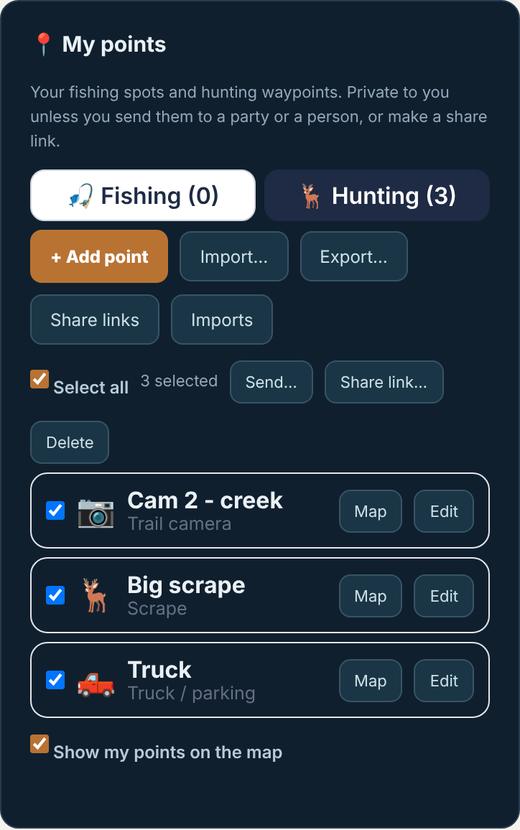
- Open More › Settings › My points, Hunting tab.
- + Add point: scrape, trail camera, truck and more. Points are private to you.
- Import… and Export… CSV, GPX or KML for your GPS or Google Earth.
- Tick points, then Send… to your party or a person, or make a Share link.
6 · Stands and the stand board
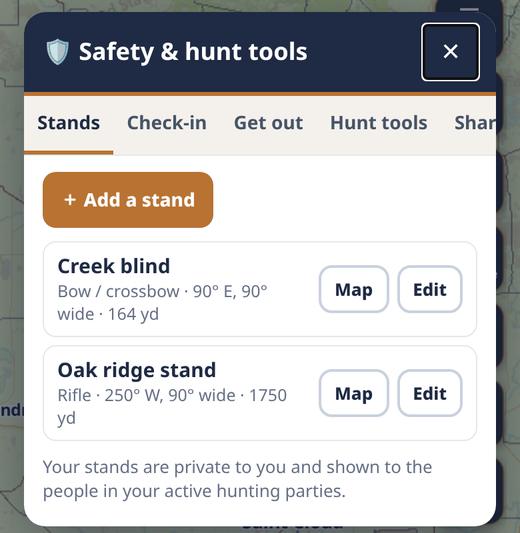
- Open More › Safety › Stands and tap + Add a stand: name, weapon and shooting direction.
- Your stands are private and are shown to the people in your active hunting party.
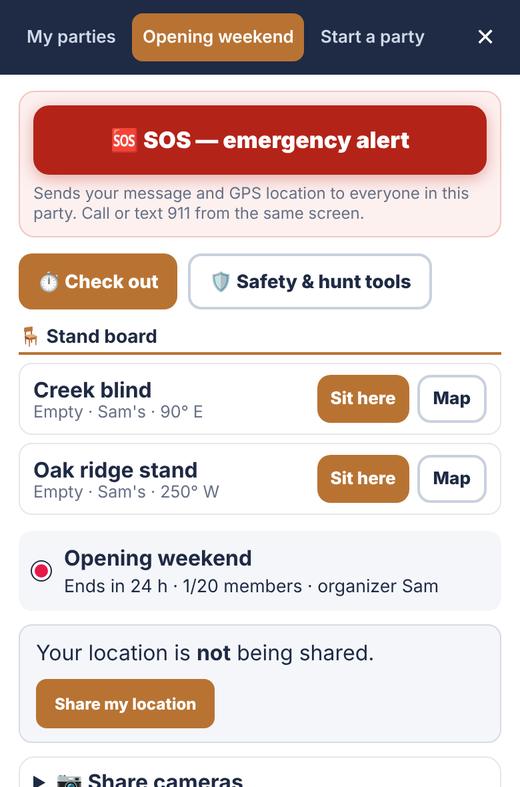
- In a party, the Stand board shows who is sitting where. Tap Sit here when you get in the stand.
7 · Check-in timer, SOS and fall detection
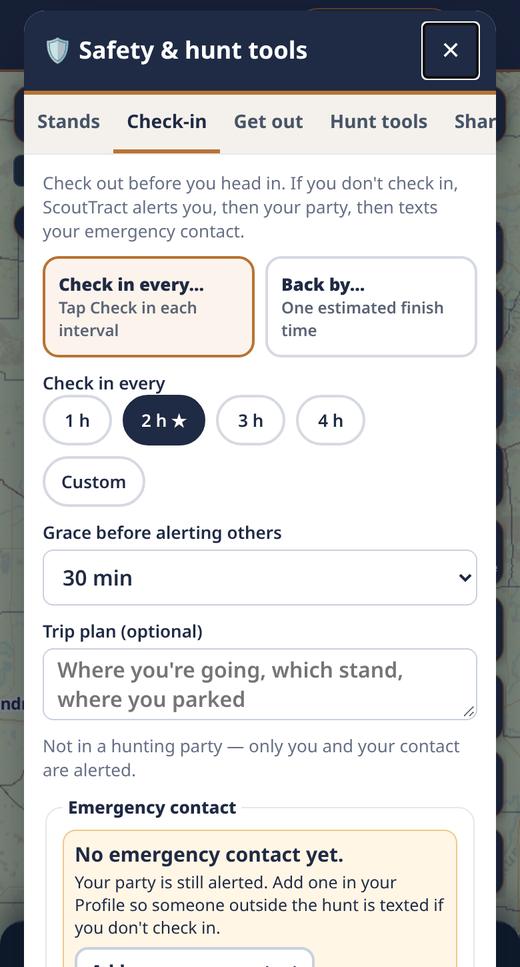
- Check-in (More › Safety): pick Check in every… or Back by…, add a trip plan, then Check out – start hunt. Miss a check-in and ScoutTract alerts you, then your party.
- Emergency contacts (optional): add up to three in Settings / Account and send each one their private confirmation link. A confirmed contact with an email gets an email alert with your location after an SOS or an uncancelled crash/fall alert. Coming soon: emergency contact texting is being turned on shortly. Email alerts work now. Medical info (optional) is in Settings.
- SOS (red button with a party open) sends your message and GPS to everyone in the party.
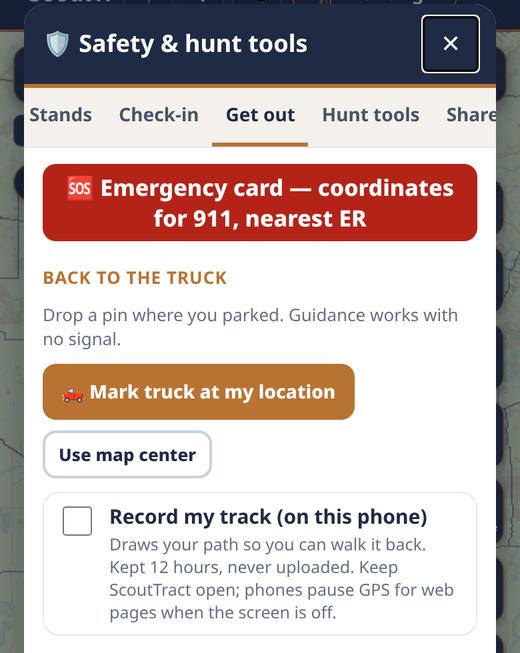
- Get out: the emergency card with your coordinates and nearest ERs, mark the truck, and record your track to walk back.
- Crash & fall detection (beta) is off until you turn on a profile (Tree stand, Biking, ATV / UTV, Off-road) in Safety › Settings. A hard fall then no movement starts a loud 60-second countdown; tap I’m OK to cancel. In the Android app it keeps working with the screen off; in the web app keep ScoutTract open.
Always call 911 first in an emergency. ScoutTract never calls 911 for you, and alerts need a cell signal.
8 · Groups and messages
- Open More › Party, tap Start a party, name it and share the link with your group.
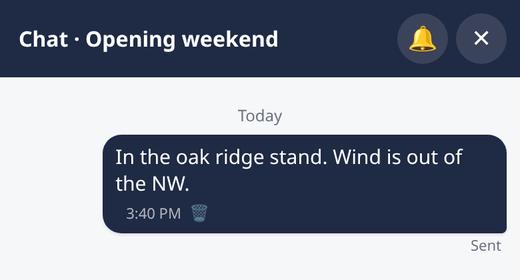
- Chat and quick replies (On my way, At the truck), push-to-talk and shared pins.
- Live location is off until you tap Share my location; stop with one tap. Needs a cell signal.
9 · Help and feedback
- More › Report a problem or Suggest an idea goes straight to us. Feedback is there too.
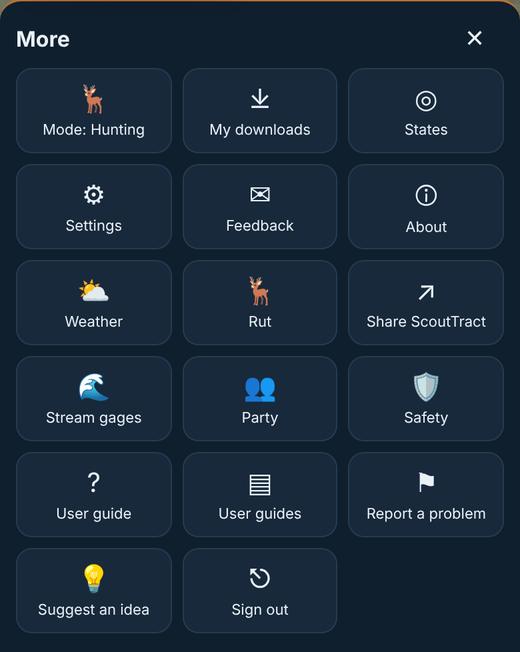
- More › Quick Start guide opens this guide; User guides has the rest.
- Questions: catchall@scouttract.com.
A full hunting user guide is coming. It will appear under More › User guides.